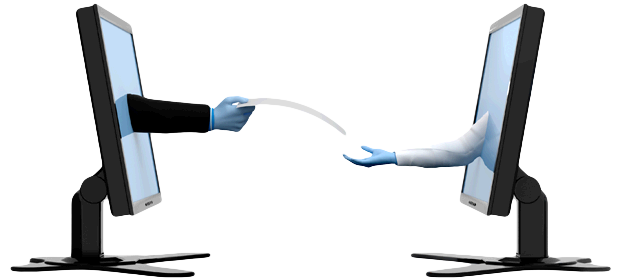
Gracias a los avances tecnológicos, hoy en día tenemos la posibilidad de compartir archivos o verlos online, a través de Internet. Puedes compartir archivos con una o varias personas que formen parte de tu círculo de amigos o familiares, o puedes convertirlos en público, para que cualquier persona pueda verlos en línea.
También, puedes compartir archivos que otras personas han compartido contigo, siempre y cuando esas otras personas tengan el archivo con acceso al público en general.
Si deseas aprender más sobre las diversas alternativas que ofrece Internet para almacenar, compartir y administrar tus archivos, con la seguridad y confiabilidad que necesitas, entonces presta mucha atención.
Qué es el intercambio de archivos
El intercambio de archivos online es un proceso que abarca el almacenaje digital de información, como:
● Programas informáticos
● Audios
● Videos
● Fotos
● Documentos
● E-books
Esto con el fin de, posteriormente, ser distribuida o compartida con otras personas o grupos que hayas elegido.
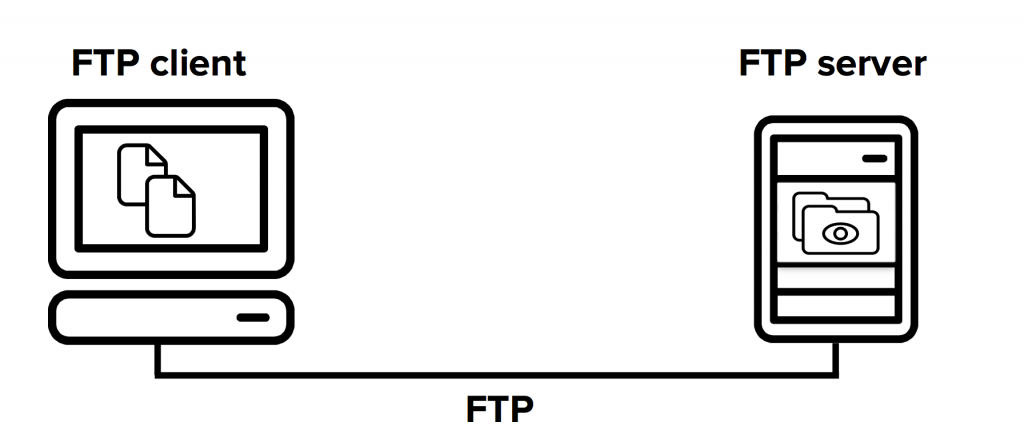
Puedes hacerlo con varios tipos de almacenamiento y transmisión. También, puedes distribuirlos manualmente a través de servidores de archivos en redes informáticas o documentos enlazados en Internet.
Finalmente, están las redes sociales como Facebook, Instagram, Telegram, Whatsapp, Messenger o Twitter, entre otras, donde te enteras y compartes infinidad de información y hasta tienes una relación más directa con tu círculo social.
Permisos para compartir archivos online
Una vez decidiste compartir la información, podrás decidir el tipo de acceso que das a otras personas a tus archivos. Por ejemplo:
Acceso de sólo lectura
Si solamente estas personas tienen acceso a lectura, pueden verlo, comentarlo, descargarlo y recomendarlo. También, pueden añadir archivos a colecciones de los que son colaboradores.
Acceso de editor
Si las personas con quienes compartes tus archivos de manera online, tienen acceso de editor pueden leer, editar, comentar descargar, recomendar, subir una versión nueva y configurar las propiedades del archivo. Pueden añadir información a una colección, hacer cambios o borrar.
Lo importante es que tengas claro que estas personas verán y compartirán los diversos archivos que tú compartas con ellos, dándoles el acceso como editores.
¿Cómo compartir archivos o verlos online?
Una vez hayas definido el contenido que deseas compartir a través de Internet y subir a la “nube”, solo deberás seguir estos sencillos pasos:
- Abre la página de archivo.
- Luego pulsa compartir.
- Selecciona a la o a las personas con quien vas a compartir (para darles permisos específicos).
- Elige si quieres que los usuarios seleccionados tengan acceso a editar o solo funja como lector.
- Escribe sus nombres, así como el correo electrónico. Luego pulsa el ícono de personas, para seleccionar con las que has compartido recientemente.
- Y, por último, pulsa compartir.
Si lo que quieres es que tus archivos sean para todo el público, pues es muy simple, selecciona Público, para que sea visible para todos. Ahora, si te has arrepentido y quieres revertir la acción, no te preocupes, solo deberás pulsar Compartir y luego marcar sobre la X de todos, e igual que con los vídeos pornográficos, anteriormente sólo hacíamos que para ver porno online había que descargar dichos videos y archivos en nuestro ordenador pc, mac, o cualquier dispositivo, ahora con las nuevas tecnologías ya no hace falta descargar dichos archivos, existen miles de páginas porno online en español que ofrecen poder disfrutar de las películas xxx online sin necesidad de ser descargados, algunas de ellas podríamos decir que son los sitios de mejor sexo, xnxx.com, xvideos, redtube. youporn. pornchef, entre miles de otras .
Esto puedes hacerlo desde tu Google Drive o la aplicación de tu preferencia para almacenar y compartir archivos en la nube.

Ver archivos online sin descargarlos
Ahora bien, si lo que quieres es ver un archivo online sin tener que descargarlo, lo que debes hacer es hacer clic doble clic sobre el archivo que te han compartido. Se abrirá de inmediato una vista previa del archivo, que te permitirá verlo sin editar.
Si deseas editarlo en la misma nube, sin tener que descargarlo, haz clic derecho para que se despliegue el menú de opciones. Allí te aparecerá la opción de crear una versión editable del archivo. De esta manera, podrás hacer ediciones al archivo, si tienes las aplicaciones para ello.
Existen muchas otras formas de compartir archivos y verlos online, pero esta es una de las formas más sencillas y seguras.
Si quieres saber más sobre este u otros temas, relacionados con la era digital mantente conectado con nosotros.